Figma now rotates layers in real 3D. On November 12, 2026, Figma shipped 3D transform, a new effect that rotates any layer on the X, Y and Z axes with on-canvas handles and live previews (Figma release notes).
It's rolling out as an open beta (Figma on X). Figma's help centre lists it on all plans for anyone with a Full seat and edit access to the file (Figma Help Center). The same day, plugin API Update 142 added beta 3D fields for plugin authors (Figma developer docs).
Why care? Card flips, tilted mockups and perspective heroes used to mean a plugin, a flattened PNG or After Effects, and the angles were easy to lose in handoff. Now every control maps to a CSS property.
The takeaway? Rotate the layer, put perspective on its parent frame, switch on "Keep nested layers 3D" when you need depth, and copy the CSS from Dev Mode.
Key Takeaways
- Figma 3D transform is a layer effect (Effects → + → 3D transform) that rotates frames, text, images, vectors and components on X, Y and Z.
- Perspective sits on the parent frame and may show no change unless layers inside it have a 3D transform. Depth needs "Keep nested layers 3D" on that parent, which disables opacity, blend modes, shaders, other effects and clipping there.
- Every control maps to CSS (rotateX/Y/Z, translateZ, perspective, transform-style), and plugins can set the same values through the beta transform3d API.
What is Figma's 3D transform?
Figma's 3D transform is a non-destructive effect that tilts or spins a layer in three-dimensional space while keeping it editable. It works on vectors, images, frames, components and text. Text stays editable, and fills (including shader fills) render with the transformed layer (Figma Help Center).
The three axes behave the way CSS does:
- X axis tilts the layer forward or backward.
- Y axis tilts it left or right.
- Z axis spins it clockwise or counterclockwise in the plane of the canvas.
- Depth moves the layer toward or away from the viewer along Z.
Before November 12, 2026, Figma's own forum had an open request for native 3D transforms (Figma Forum), and older tutorials still say Figma isn't designed for 3D and send you to plugins. Those guides are now out of date.
How to add a 3D transform in Figma (step by step)
To add a 3D transform in Figma, select a layer, click the plus in the Effects section and choose 3D transform. Then drag the on-canvas handles or type exact angles. Here are the steps from Figma's help article:
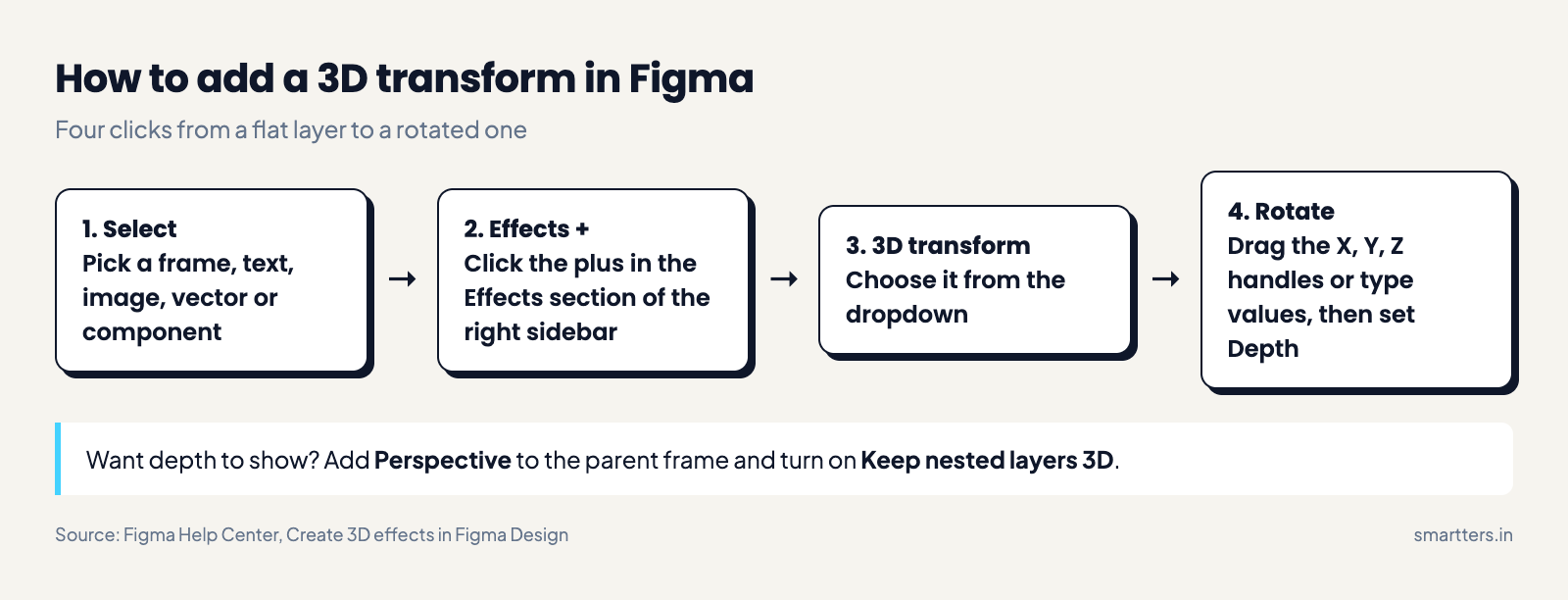
1. Select the layer
Pick it on the canvas or in the Layers panel. A frame, text layer, image, vector or component all work.
2. Open Effects and add 3D transform
Click + in the Effects section of the right sidebar and choose 3D transform from the dropdown.
3. Rotate it
Drag the handles on the canvas to rotate around X, Y or Z. For exact values, open the effect settings and type the angles. Clicking the reset control puts the rotation back to zero.
4. Set the rotation point and backface
By default a layer rotates around its centre. Click the rotation point icon at the top of the effect settings to move it. You can type X and Y values, drag the origin on the layer, or pick a preset point. Put it on the left edge and a card swings like a door.
The Backface control decides what shows when a layer turns away from you. When it's visible you see a mirrored copy of the front. For a card with different art on each side, Figma suggests two layers, front and back, with backfaces hidden.
How to add perspective and depth (and why nothing seems to change)
Perspective belongs on the parent frame, not on the rotated layer. Select the frame that holds your 3D layers, click + in Effects, choose Perspective and lower the value for a stronger effect. Figma notes that the slider range adapts to the size of your selection.
We'd expect this to be the first thing that trips people up. Figma's help article says perspective "may not produce a visible change" if the nested layers don't have a 3D transform. Depth has a similar catch. To see it, turn on Keep nested layers 3D for the parent frame. Then add perspective or a 3D rotation to that parent (Figma Help Center).
That setting puts every child in one shared 3D space, so a stack of cards can fan out with real depth. It also takes things away. Opacity is disabled, blend modes, shaders, other effects and clip content become unavailable, and the frame's existing fills and strokes are hidden:
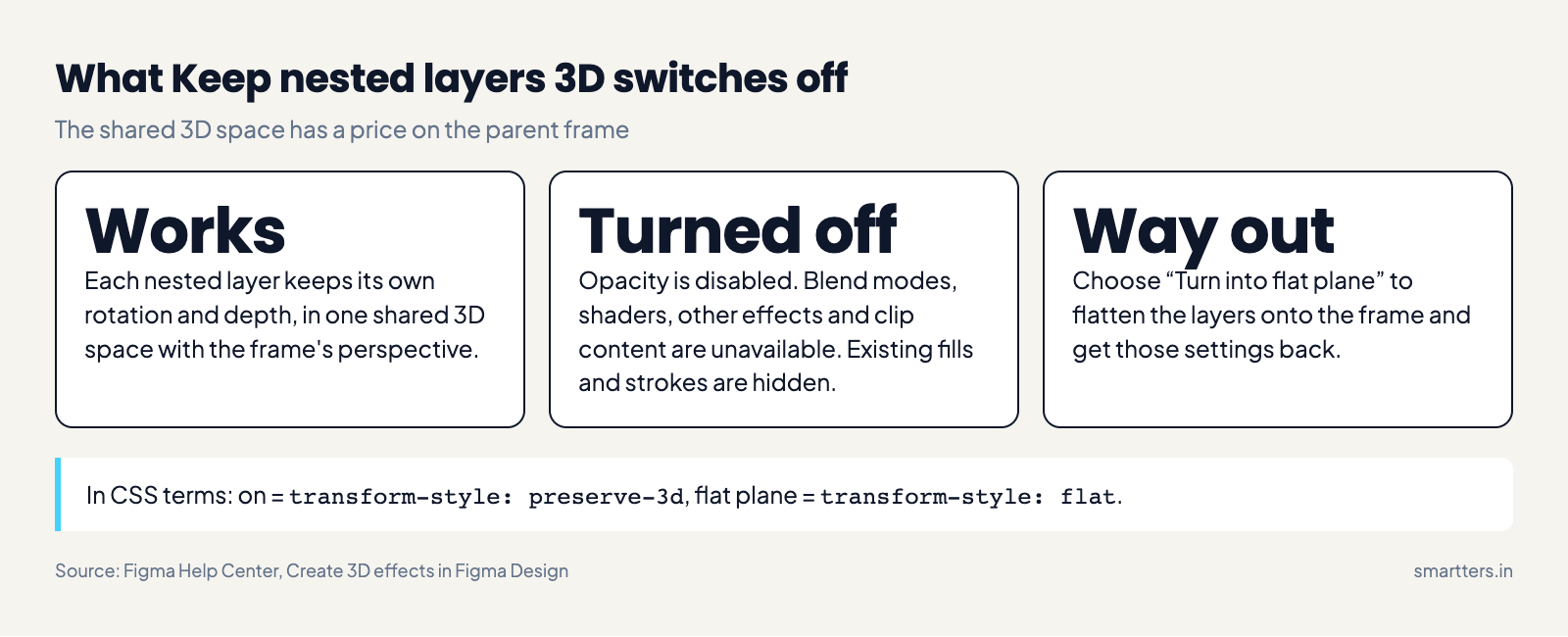
If you need any of those on that frame, choose Turn into flat plane. It flattens the nested layers onto the frame and ends the shared 3D space at that level. Plan your frame structure early: keep effects on an outer wrapper and the 3D scene on an inner frame.
How to animate 3D transforms in Figma Motion
To animate a 3D transform, switch to motion mode, add keyframes from the 3D transform settings, and tune them in the timeline. The help article lists Rotate X, Rotate Y and Depth as animatable, and says you can keyframe perspective too.
Rotate Z isn't on that list. If you need an in-plane spin, our untested suggestion is the layer's normal 2D rotation. Check the help article again as the feature matures.
On November 10, two days before 3D transform shipped, Figma Motion gained physics-based springs where you set mass, stiffness and damping (Figma release notes). We'd reach for springs on card flips, since a flip on a linear curve tends to feel mechanical.
If your plan includes the Figma agent, it can do the setup for you. Figma's help article gives the example prompt "Arrange these layers as the faces of a cube and animate it rotating." Review the keyframes it creates before you hand anything off. We covered why motion tooling inside Figma matters in our UI design trends for 2027 roundup.
Figma 3D transform to CSS: what Dev Mode gives you
Every 3D control in Figma has a direct CSS equivalent, so handoff is a copy rather than a guess. In Dev Mode, select the layer and copy the CSS transform values. Dev Mode isn't included with every seat type, so check yours.
Figma maps Depth to translateZ, the Perspective effect to perspective and Keep nested layers 3D to transform-style (Figma Help Center). The plugin docs fill in the rest, mapping rotation, the rotation point and backface to their CSS equivalents (Transform3d, transformOrigin, Scene3d):
In Figma CSS Plugin API
Rotate X / Y / Z
rotateX() rotateY() rotateZ()
transform3d.rotateX/Y/Z (degrees)
Depth
translateZ()
transform3d.translateZ (px)
Rotation point
transform-origin
transformOrigin (px or %)
Backface
backface-visibility
transform3d.backfaceVisible
Perspective (on the frame)
perspective
scene3d.perspective (px)
Keep nested layers 3D
transform-style: preserve-3d
scene3d.preserve3d
Order matters. Figma applies the transform as translateZ() rotateX() rotateY() rotateZ(), in that order, so keep the same order in your stylesheet or the result won't match. Here's what a hinged card from Figma looks like in CSS. We wrote this snippet to illustrate the mapping; it isn't Dev Mode output:
/* Parent frame: Perspective 800 + Keep nested layers 3D */
.scene {
perspective: 800px;
transform-style: preserve-3d;
}
/* Child layer: rotation point on the left edge, Y = 45°, Depth 0 */
.card {
transform-origin: 0 50%;
transform: translateZ(0) rotateX(0deg) rotateY(45deg) rotateZ(0deg);
backface-visibility: hidden;
}
On mobile, Flutter and SwiftUI have no preserve-3d switch. Expect to rebuild the scene with a perspective matrix, such as Matrix4.setEntry(3, 2, …) in Flutter or rotation3DEffect in SwiftUI, and treat the Figma values as the spec.
Using 3D transforms from a plugin (transform3d API)
Plugins can now set 3D rotation, depth, the rotation point and the parent's perspective. Update 142 adds three node properties, all in beta and "subject to change" (Figma developer docs):
- transform3d: a FIXED_ORDER object with translateZ (pixels) and rotateX, rotateY, rotateZ (degrees), plus optional backfaceVisible and visible. All four numbers are required. Assign { type: 'NONE' } to remove it.
- transformOrigin: the rotation point, in PIXELS or PERCENT per axis. It defaults to 50% on both axes.
- scene3d: perspective (pixels, -1 turns it off) and preserve3d on frames, components and instances.
This is adapted from Figma's example in the transformOrigin docs:
const card = figma.createRectangle()
card.resize(160, 100)
// Rotate around the middle of the left edge, like a hinged door.
card.transformOrigin = {
x: { unit: 'PIXELS', value: 0 },
y: { unit: 'PERCENT', value: 50 },
}
card.transform3d = {
type: 'FIXED_ORDER',
translateZ: 0, rotateX: 0, rotateY: 45, rotateZ: 0,
}
Two details are easy to miss. The returned object is read-only, so copy it, change a field and assign it back. And an imported 3D transform comes back as FREEFORM, which plugins can read but can't assign.
Do you still need a 3D plugin in Figma?
For rotating UI, mostly no. Tilted cards, device mockups at an angle, flip animations and perspective grids are now native and hand off as CSS.
Here's how we'd split it:
- Best for rotated UI and flips: native 3D transform. It stays editable and maps to CSS, but it only bends flat layers, so it won't give you a real 3D object.
- Best for real 3D objects and lighting: a 3D tool or plugin (Spline, Blender or a Figma 3D plugin). You get extruded type and materials, but the result can land in Figma as an image rather than editable layers.
- Best for perspective on a flat screenshot: either. If the screenshot is a frame, native perspective wins. If it's a single bitmap you need to warp at its corners, a distort plugin still does a job 3D transform doesn't.
Trade-offs and what we don't know yet
It's still a beta, and the docs leave gaps.
- The API can change. Figma marks the plugin fields as beta and subject to change, so build on them knowing a field could be renamed.
- Shared 3D space has a cost. Losing opacity, blend modes, shaders, other effects and clip content on a preserve-3d frame forces a nesting pattern you'll need to teach the team.
- Rotate Z isn't listed as animatable. In-plane spins may need a workaround for now.
- Export and prototyping aren't covered. The help article doesn't say how 3D layers export to PNG or SVG, or how they behave in prototype transitions. Test both before you promise anything to a client.
- Accessibility. WCAG's Animation from Interactions guidance exists because motion like large rotations and zooms can make some people ill. Ship a prefers-reduced-motion fallback with every flip, the same discipline we argued for with Apple's Liquid Glass and Material 3 Expressive.
How we checked this
Sources: Figma's release notes, its 3D effects help article and the plugin API docs, read on November 19, 2026. We didn't open Figma or test the feature ourselves for this post; every behaviour described comes from Figma's documentation. The CSS snippet is ours, written to show the mapping. The 2D-rotation workaround for Z spins and the Flutter and SwiftUI notes are our suggestions, not something Figma documents.
Frequently Asked Questions
Does Figma support 3D now?
Yes. Since November 12, 2026, Figma has a native 3D transform effect that rotates layers on the X, Y and Z axes and adds depth and perspective. It's in open beta, and it's built into Figma Design, so you don't need a plugin for rotated layers.
How do you 3D rotate a layer in Figma?
Select the layer, click the plus in the Effects section of the right sidebar and choose 3D transform. Then drag the on-canvas handles or type angles for X, Y and Z. Add Perspective to the parent frame to make the rotation look three-dimensional.
Which Figma plans get 3D transform?
Figma's help centre lists 3D transform on all plans. You need a Full seat and edit access to the file. Figma's launch post on X described the rollout as an open beta.
Can you animate 3D transforms in Figma Motion?
Yes. In motion mode you can keyframe Rotate X, Rotate Y, Depth and perspective from the 3D transform settings. Figma's help article doesn't list Rotate Z as animatable. Our untested workaround is the layer's normal 2D rotation.
Does Figma 3D transform export to CSS?
Dev Mode gives you the CSS transform values for a 3D-transformed layer, if your seat includes Dev Mode. Depth maps to translateZ, the Perspective effect to perspective, and Keep nested layers 3D to transform-style: preserve-3d. Keep the transform order Figma uses: translateZ, rotateX, rotateY, rotateZ.
Why does my perspective or depth do nothing in Figma?
Figma says perspective may not produce a visible change if the layers inside the frame don't have a 3D transform. Depth becomes visible when the parent frame has Keep nested layers 3D turned on and has perspective or a 3D rotation of its own. Check those two settings first.
If you're planning a product launch page or app onboarding around this kind of motion, our UI/UX design team can help you scope it. Start small: rebuild one card flip in Figma this week, copy the CSS from Dev Mode, and check the plugin update notes before you build tooling on the beta API.