
A Next.js website can feel fast during development and still perform poorly once it's live. Large images, unnecessary JavaScript, slow API responses and poorly handled rendering can quietly make a website slower than it needs to be, which is why Next.js performance optimization is worth planning for rather than leaving until users notice.
The good news is that Next.js already handles several performance optimizations for you. You don't need to add a dozen libraries or rewrite your application to make it faster.
In this guide, we'll cover the practical ways to optimize a Next.js app for performance in 2026, from reducing JavaScript and optimizing images to improving Core Web Vitals.
The short answer: keep components on the server unless they need interactivity, serve images through next/image, ship less JavaScript, fetch independent data in parallel, load fonts and third-party scripts deliberately, and measure Core Web Vitals on a production build.
1. Use Server Components wherever possible
One of the easiest ways to avoid shipping unnecessary JavaScript to the browser is to keep components server-rendered when they don't need client-side interactivity.
In the Next.js App Router, components are Server Components by default. They can fetch data, render UI on the server and avoid adding their component code to the client-side JavaScript bundle.
Use Client Components only when you need things such as:
- Interactive buttons or menus
- React state and event handlers
- Browser APIs
- Effects or client-side interactions
Avoid placing "use client" at the top of large component trees just because one small section needs interactivity.
Instead, keep the interactive part isolated. The page stays a Server Component:
import InteractiveButton from "./InteractiveButton";

// Server Component: no "use client", so none of this ships as JavaScript
export default function Page() {
  return (
    <main>
      <h1>Welcome</h1>
      <InteractiveButton />
    </main>
  );
}
Only the button is a Client Component:
"use client";

import { useState } from "react";

export default function InteractiveButton() {
  const [count, setCount] = useState(0);

  return (
    <button onClick={() => setCount(count + 1)}>
      Clicked {count} times
    </button>
  );
}
The goal isn't to eliminate Client Components. It's to avoid making more of your application interactive than necessary. If you want a refresher on how the two rendering models differ, see our explainer on client-side vs server-side rendering in Next.js.
2. Optimize images with next/image
Images are often one of the biggest contributors to a slow website, especially on pages with large banners, product images or image-heavy sections.
Next.js provides the Image component to help resize images, deliver modern formats and reduce unnecessary image loading.
import Image from "next/image";

export default function Hero() {
  return (
    <Image
      src="/hero-image.webp"
      alt="Product dashboard preview"
      width={1200}
      height={800}
      preload
    />
  );
}
For the main hero image visible when the page loads, make sure it's loaded promptly. Don't lazy-load your main above-the-fold image if it is likely to be your Largest Contentful Paint element. In Next.js 16, the preload prop does this; the older priority prop is deprecated, so use priority only if you're still on Next.js 15 or earlier.
For images further down the page, lazy loading is generally the better approach, and it's what next/image does by default.
A few things worth checking:
- Use WebP or AVIF where appropriate.
- Resize images to the actual display dimensions.
- Avoid uploading unnecessarily large images.
- Set image dimensions to reduce layout shifts.
- Prioritize the main visible image when appropriate.
3. Reduce unnecessary JavaScript
A website doesn't become faster just because it uses a modern framework. Too much JavaScript can still slow down rendering, interaction and page loading.
Start by checking what you're importing into your application.
Large libraries for charts, animations, date formatting, icons or complex UI components can increase bundle size, particularly when they're used inside Client Components.
Instead of loading everything upfront:
- Use lightweight alternatives where practical.
- Import only the functions or components you need.
- Dynamically load heavy components when they aren't immediately required.
- Avoid unnecessary dependencies.
- Keep client-side component trees small.
For components that aren't required immediately, dynamic imports can help.
import dynamic from "next/dynamic";

const HeavyComponent = dynamic(
  () => import("./HeavyComponent")
);

export default function Page() {
  return <HeavyComponent />;
}
This can be useful for complex charts, editors, modals and other components that aren't needed immediately when a page loads.
If you're unsure what's contributing to your bundle size, use a bundle analyzer instead of guessing.
4. Improve Core Web Vitals
Core Web Vitals help measure how users experience a website in real-world conditions. They're worth monitoring because a website that feels slow or unstable can frustrate visitors even when the design looks good.
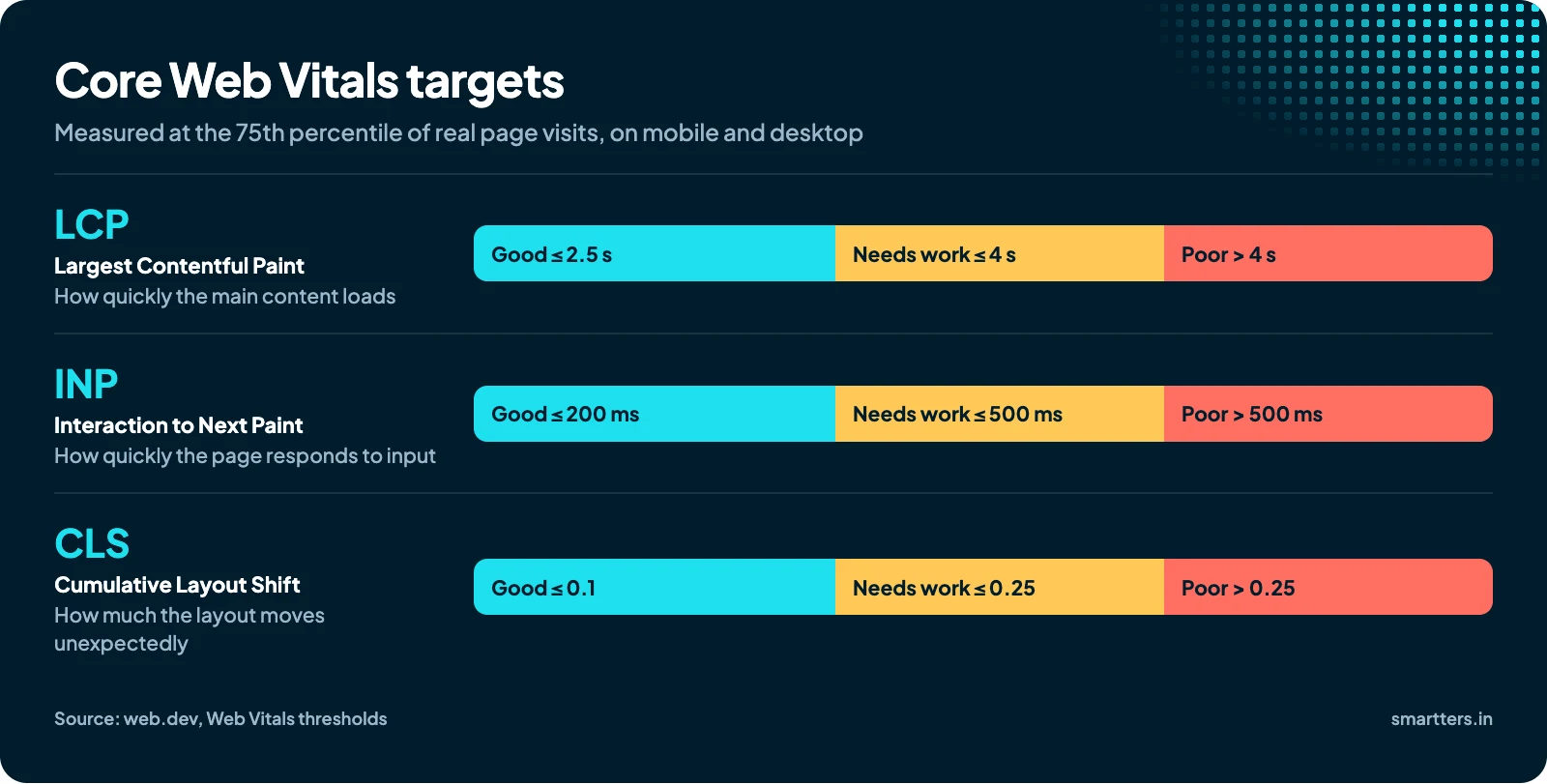
The three primary metrics to focus on, with the targets Google publishes on web.dev, are:
| Metric | What it measures | Good target |
|---|---|---|
| LCP (Largest Contentful Paint) | How quickly the main content loads | 2.5 seconds or less |
| INP (Interaction to Next Paint) | How quickly the page responds to user interactions | 200 ms or less |
| CLS (Cumulative Layout Shift) | How much the page layout unexpectedly shifts | 0.1 or less |
How to improve them
LCP: Optimize hero images, improve server response times, reduce render-blocking resources and prioritize the main content.
INP: Reduce heavy JavaScript execution, avoid blocking the main thread and simplify complex interactions. Our guide to how the JavaScript event loop handles asynchronous code explains why long tasks delay a page's response.
CLS: Set dimensions for images and videos, reserve space for dynamically loaded content and avoid inserting elements that unexpectedly move the page.
Don't rely exclusively on Lighthouse scores. Check real-world performance data through Google Search Console and PageSpeed Insights whenever available.
5. Fetch data efficiently
Slow data fetching can make an otherwise optimized website feel sluggish.
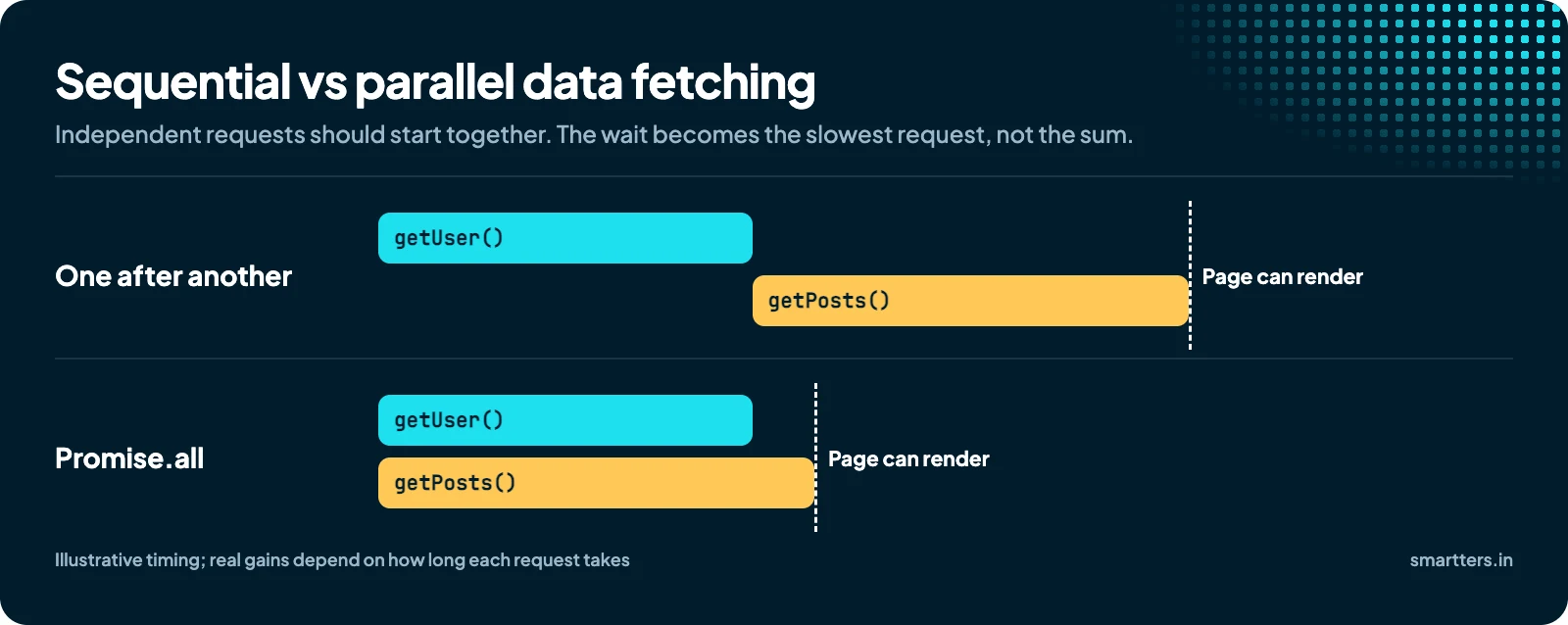
A common mistake is creating unnecessary sequential requests when multiple pieces of data could be fetched simultaneously.
Instead of waiting for one request to finish before starting another, fetch independent data in parallel.
export default async function Page() {
  const [user, posts] = await Promise.all([
    getUser(),
    getPosts(),
  ]);

  return <p>{user.name} has {posts.length} posts</p>;
}
This reduces unnecessary waiting when the requests don't depend on each other. If one of the requests fails, Promise.all fails as a whole, so handle errors accordingly.
In Next.js, you should also:
- Fetch data in Server Components when appropriate, instead of in a client-side effect. (If you're reaching for
useEffectto load data, read you might not need useEffect anymore.) - Avoid calling your own Route Handlers from Server Components when the underlying data source can be accessed directly, as the Next.js docs recommend.
- Use caching deliberately.
- Avoid unnecessary repeated requests.
- Use
loading.tsxand Suspense boundaries where they help. - Keep your database and application geographically close where possible.
Caching behavior in Next.js can vary based on the version, configuration and rendering strategy you're using. Don't assume every request or route is automatically cached the way you expect. Verify the behavior in your application.
6. Optimize fonts and third-party scripts
External fonts, analytics tools, chat widgets and tracking scripts can affect page loading and responsiveness.
For fonts, use next/font. It downloads font files at build time and serves them with your other static assets, so there are no requests to an external font service and less risk of layout shift.
import { Inter } from "next/font/google";

const inter = Inter({
  subsets: ["latin"],
});

export default function RootLayout({ children }) {
  return (
    <html lang="en" className={inter.className}>
      <body>{children}</body>
    </html>
  );
}
For third-party scripts, don't load everything as soon as the page opens.
Use the Next.js Script component and appropriate loading strategies when possible. A chat widget, for example, can wait until the browser is idle:
import Script from "next/script";

export default function Page() {
  return (
    <>
      <h1>Contact us</h1>
      <Script
        src="https://example.com/chat-widget.js"
        strategy="lazyOnload"
      />
    </>
  );
}
Review whether every script is actually necessary. A chat widget, analytics script or marketing tool might be useful, but if it slows down the experience significantly, its implementation deserves a second look.
7. Test your application in production mode
A website's performance during local development isn't a reliable representation of how it will perform in production.
Before deploying, test your application using a production build.
npm run build
npm run start
Then test important pages using Lighthouse or PageSpeed Insights.
Pay attention to:
- Performance scores on mobile.
- Core Web Vitals.
- Page loading behavior.
- JavaScript bundle size.
- Images and font loading.
- Console errors.
- Pages with slow data fetching.
Test the pages people actually visit, not just the homepage. A blog post, product page, dashboard or search page may have very different performance characteristics.
Frequently Asked Questions
What is the quickest way to improve Next.js performance?
Measure first, then fix the biggest bottleneck. On many sites that means an oversized hero image, too much client-side JavaScript or slow sequential data fetching. Run a production build, check the page in PageSpeed Insights and start with the metric that's furthest from its target.
Are Server Components faster than Client Components?
Server Components don't add their code to the browser's JavaScript bundle, so pages that use them for non-interactive parts usually ship less JavaScript. Client Components are still the right choice for anything that needs state, event handlers or browser APIs.
What are good Core Web Vitals scores?
Google's targets are an LCP of 2.5 seconds or less, an INP of 200 milliseconds or less and a CLS of 0.1 or less, measured at the 75th percentile of page visits.
Should I still use the priority prop on next/image?
Not on Next.js 16. The priority prop is deprecated there; use preload for your Largest Contentful Paint image. On Next.js 15 and earlier, priority is still the prop to use.
Why is my Next.js site slow in development but fast in production?
Development mode compiles pages on demand and adds tooling that production builds leave out. Always judge performance with npm run build and npm run start, not the dev server.
Final thoughts
Optimizing a Next.js application isn't about chasing a perfect Lighthouse score or adding every performance library you find.
It's about making sensible decisions: shipping less JavaScript, loading images efficiently, fetching data without unnecessary delays and ensuring the page responds quickly when someone uses it.
Start with the biggest bottleneck in your application. Measure it, fix it and measure again.
That approach will usually get you further than applying optimization techniques blindly.
At Smartters, our Next.js development team builds and maintains production sites, this one included. If your site needs a performance review as part of a website development project, talk to us.


